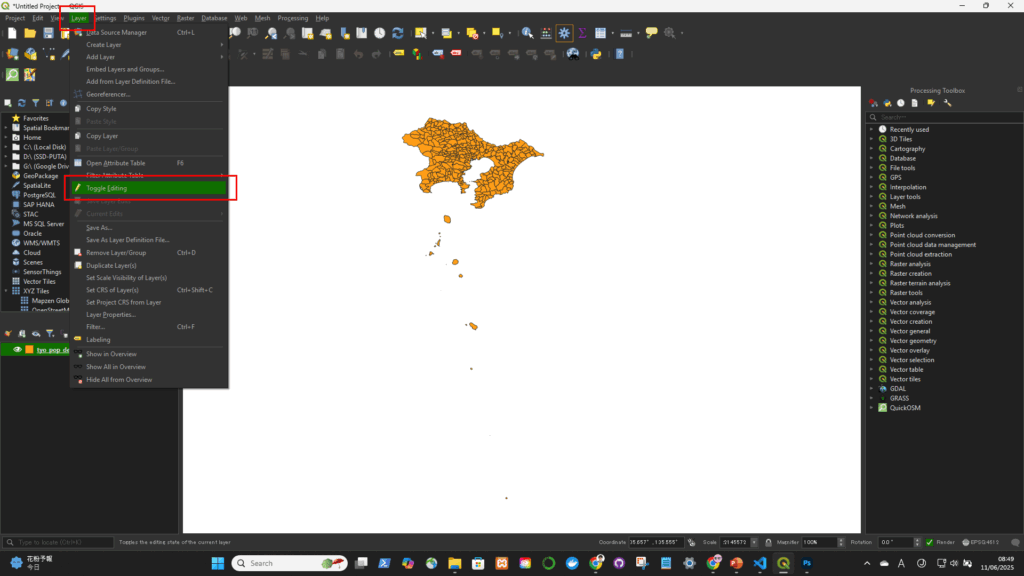
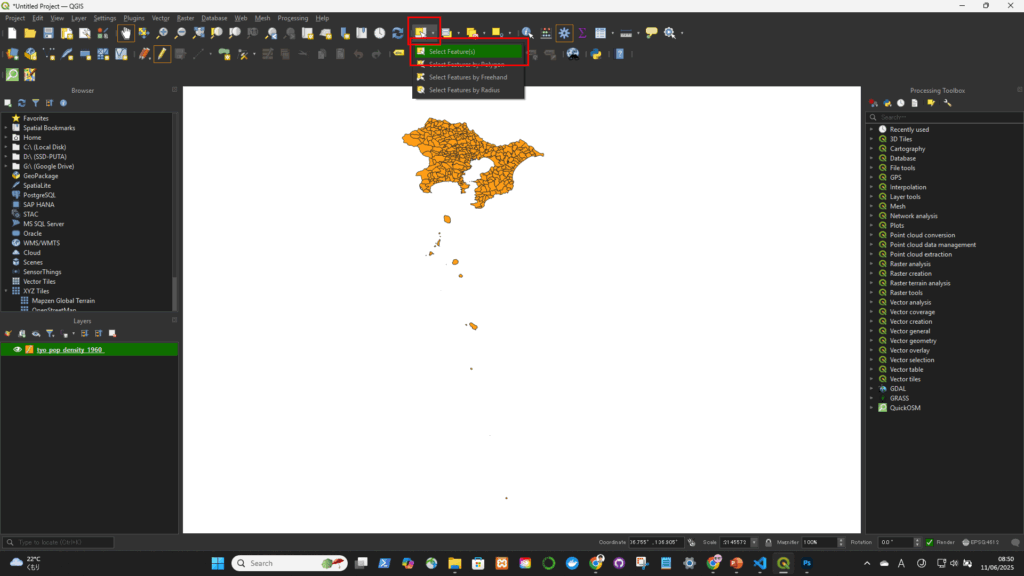
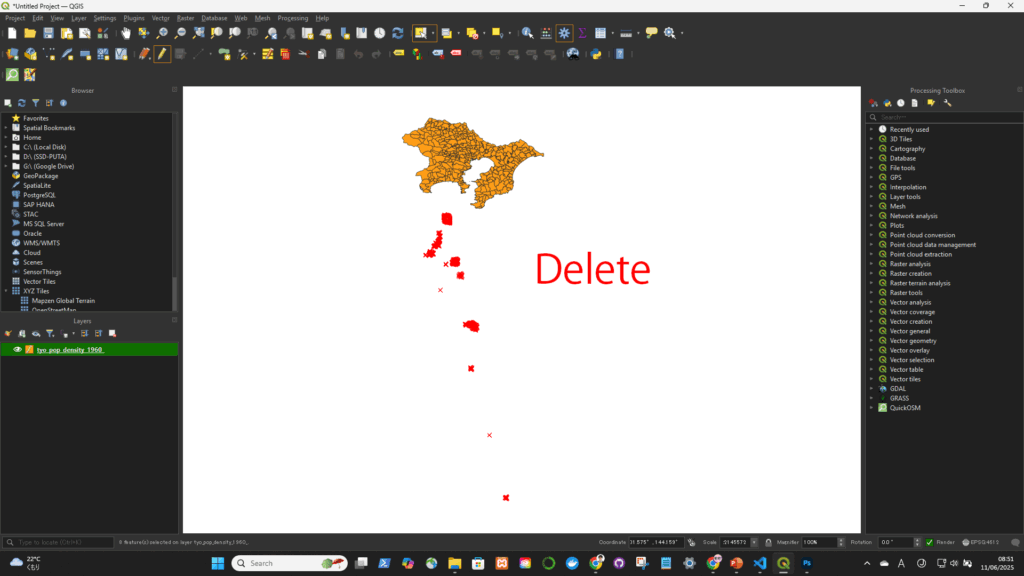
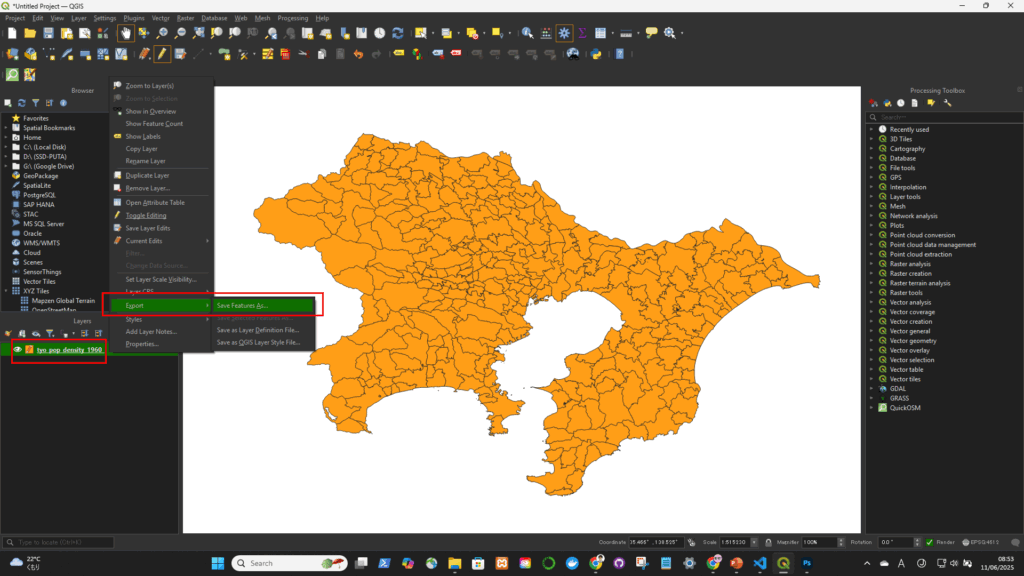
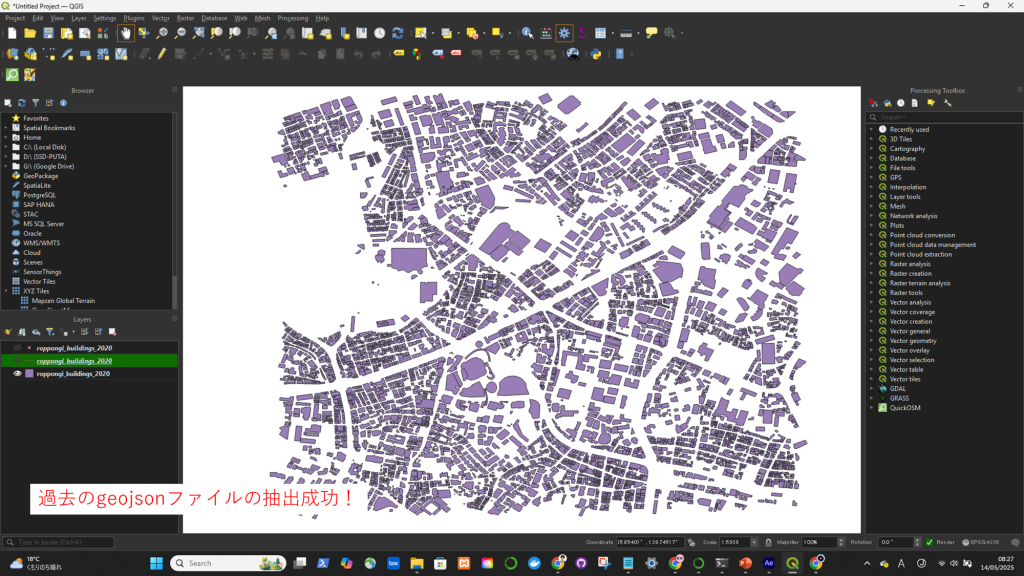
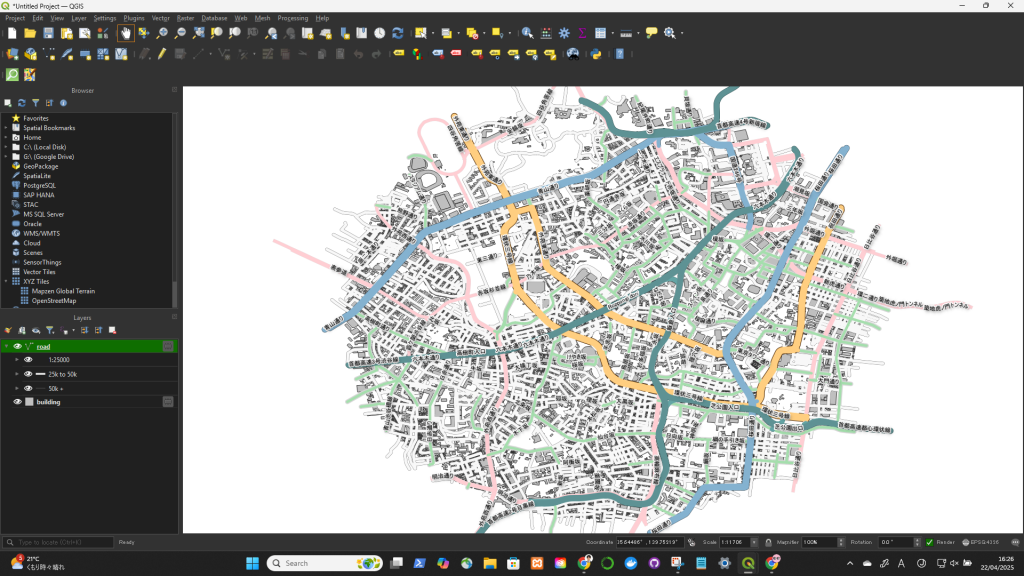
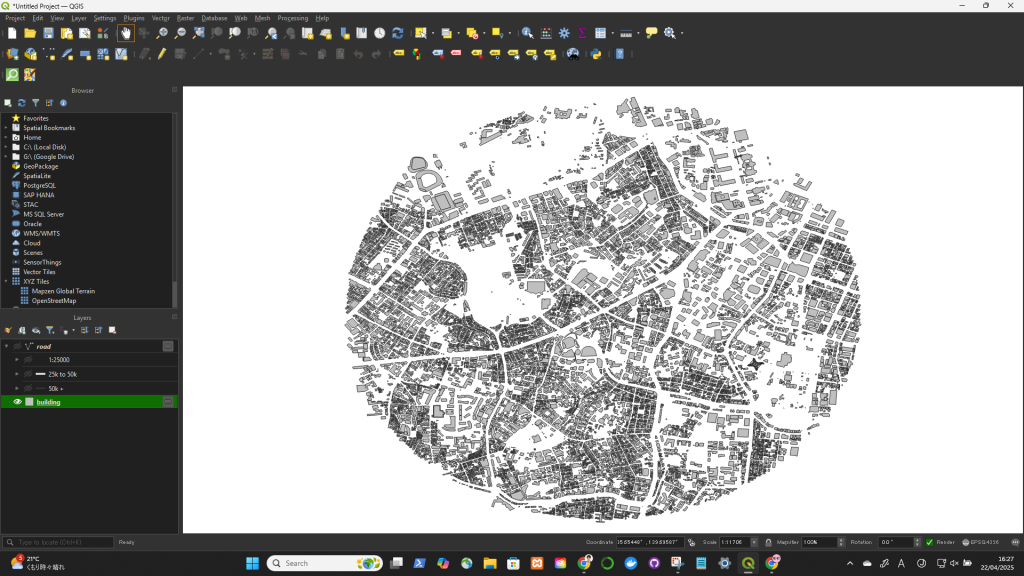
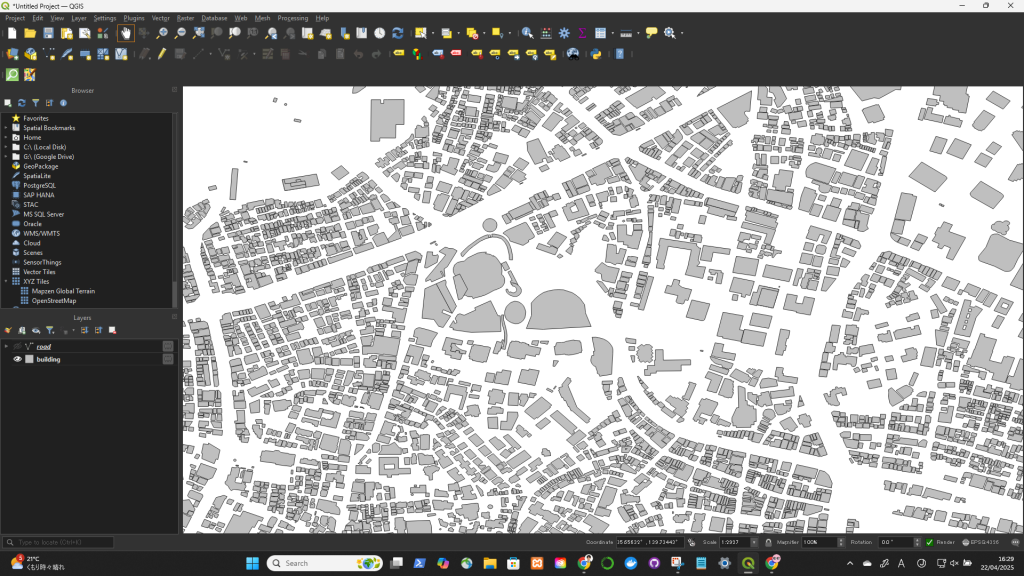
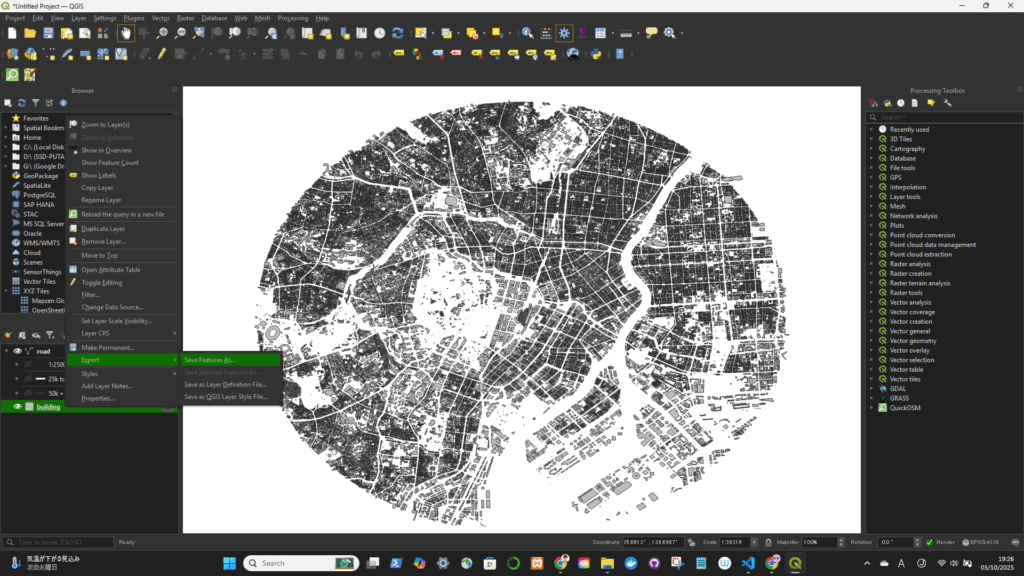
フィーチャーを抽出する

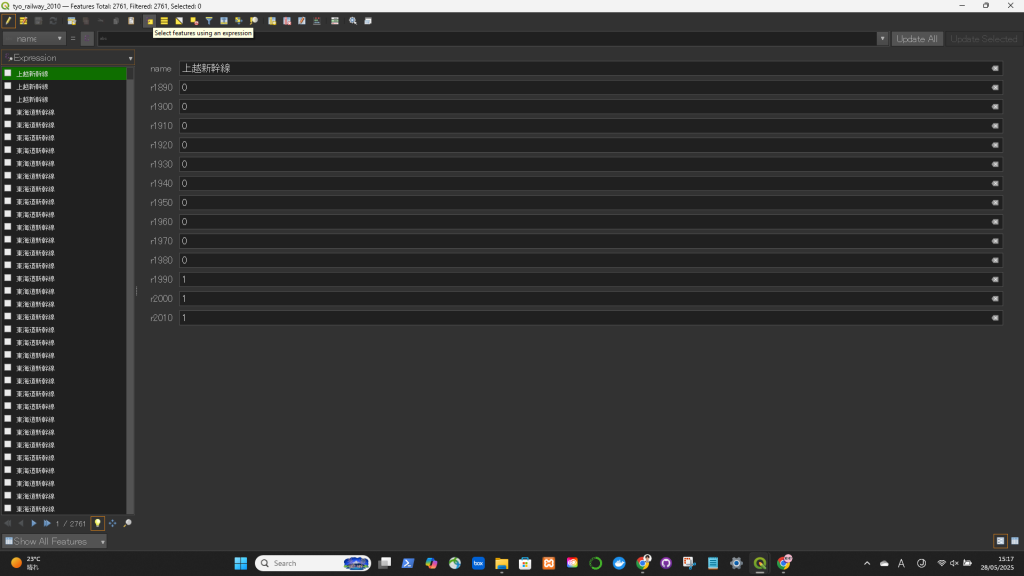
Method 1: Using “Select by Expression”

  1. Open your attribute table.
  2. Click on “Select Features Using an Expression” (looks like an abacus: ∑).
  3. Enter the following expression:
  4. SQL(例): 
    "name" LIKE '%山手線%'
    “code” <= 2000
  5. Click “Select Features”.

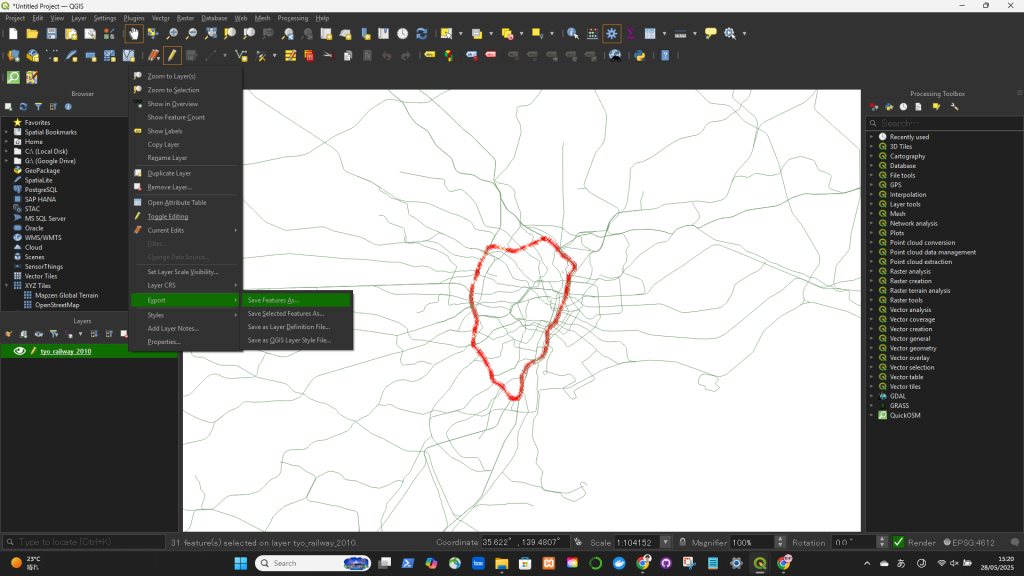
If you want to export only the selected features:
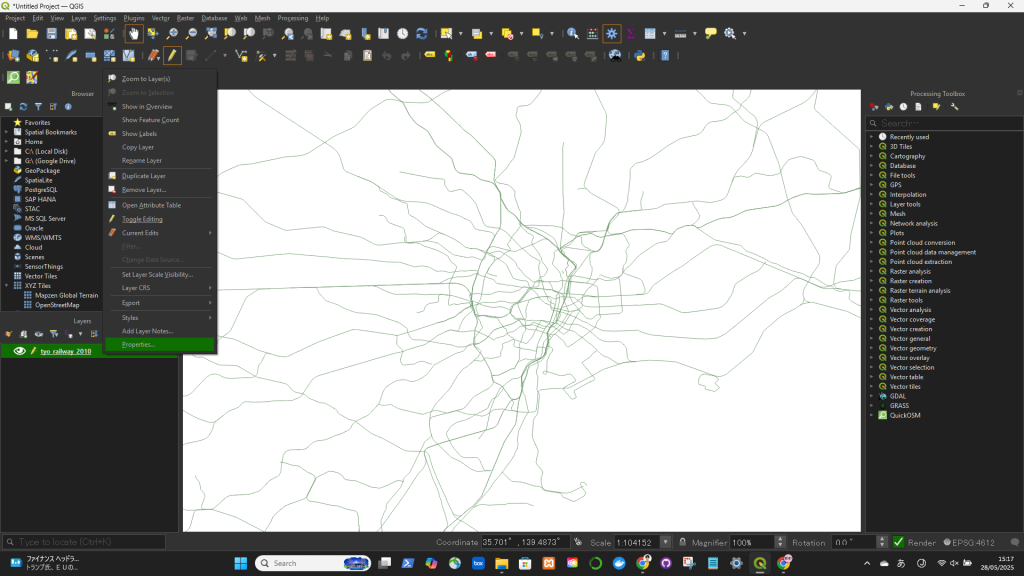
  • Right-click the layer in the Layers panel → ExportSave Selected Features As…

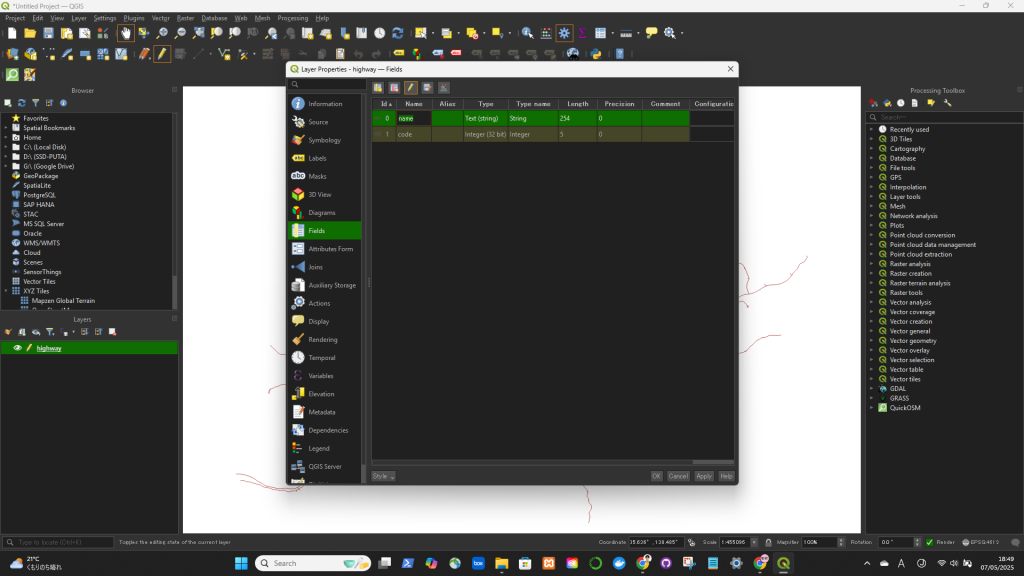
QGISでコラム名を変更する

✅ Rename a Column in QGIS (Using the Layer Properties)

  1. Right-click the layer in the Layers Panel.
  2. Select “Properties”.
  3. Go to the “Fields” tab (or “Attributes Form” in newer versions).
  4. Find the column you want to rename.
  5. Click in the “Alias” column next to the field name and type the new name.
    • 🔹 This changes only the display name (alias), not the actual field name in the data.

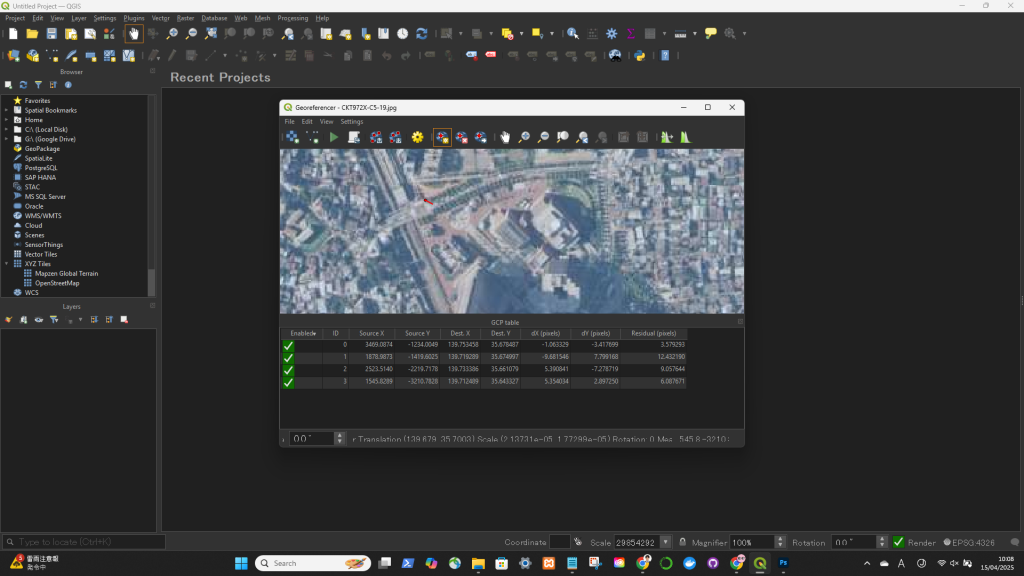
空撮画像をGeoreferencingして、ポリゴン描画

1. ジオレファレンス

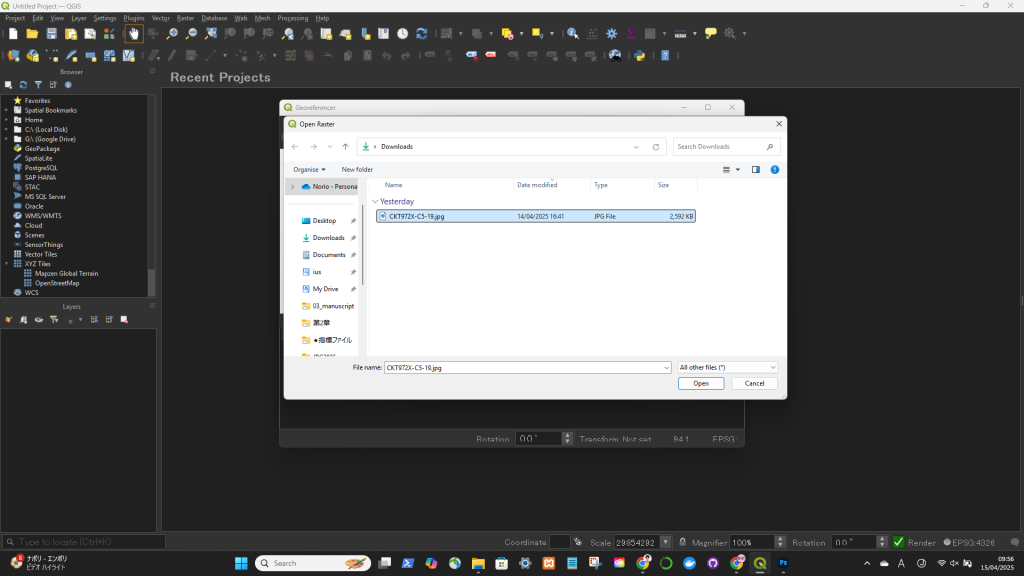
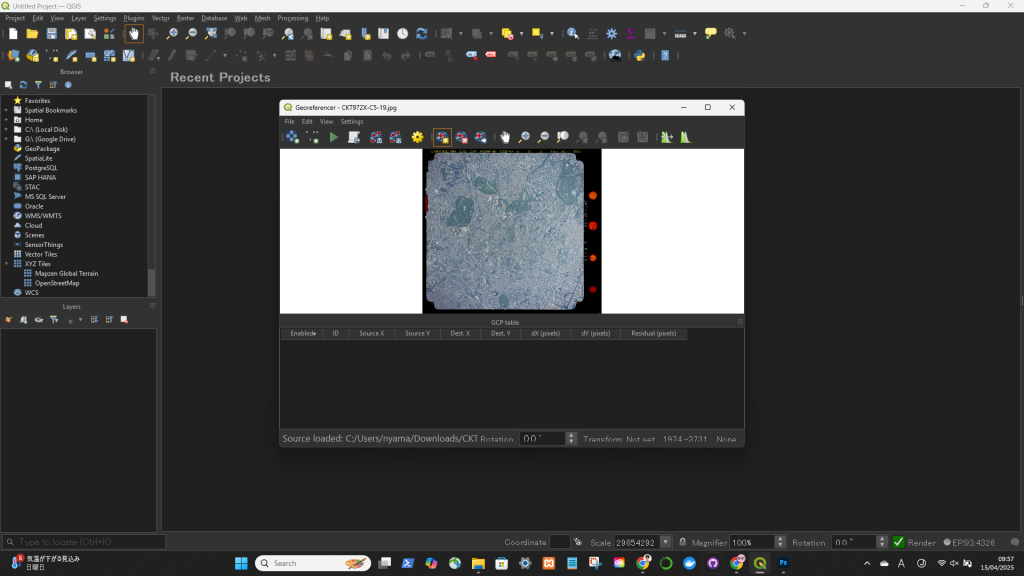
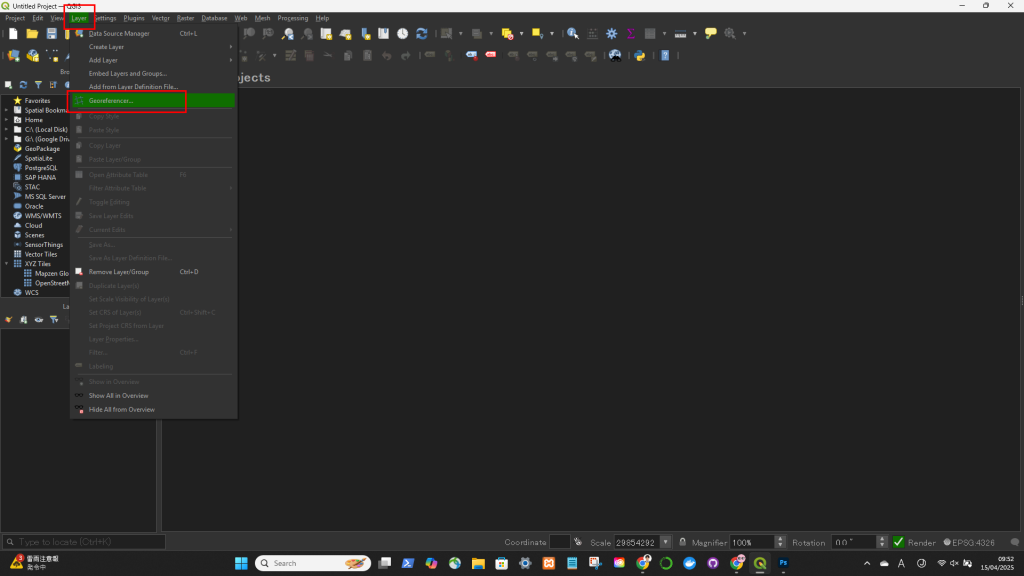
Layer > Georeferencer....
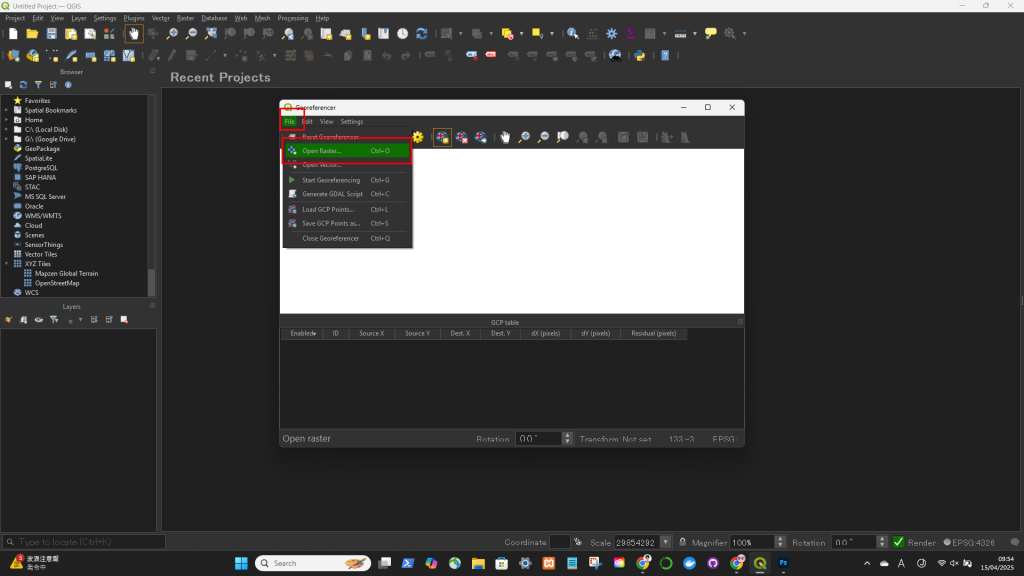
File > Open Raster
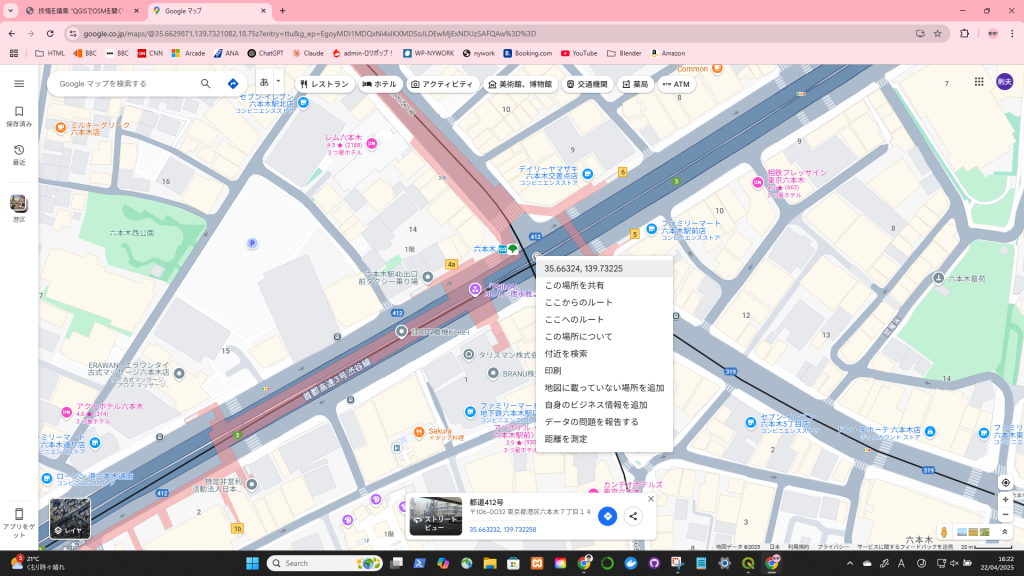
ジオレファレンスしたいポイントの緯度経度を調べる
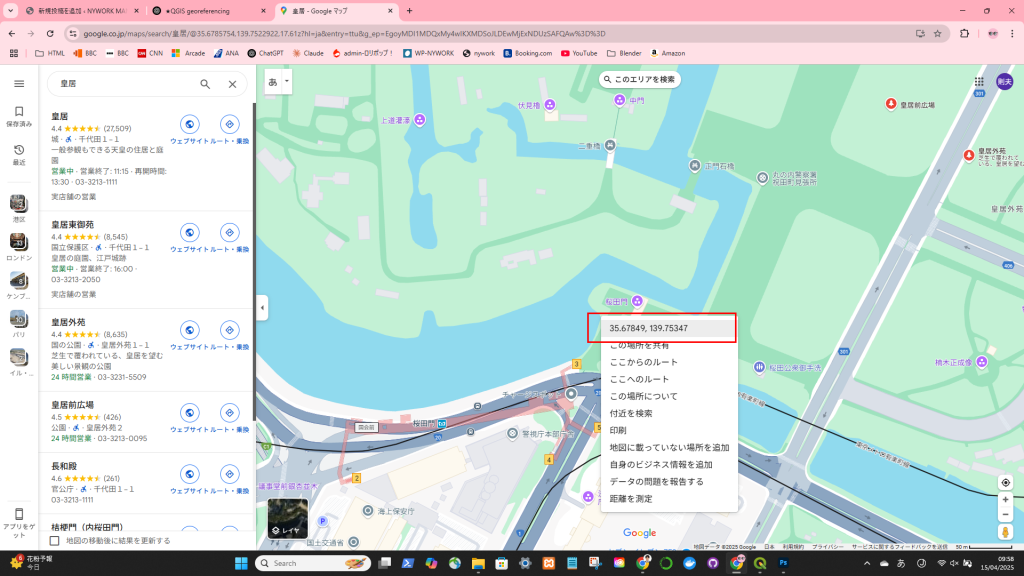
Click on the Add Point tool
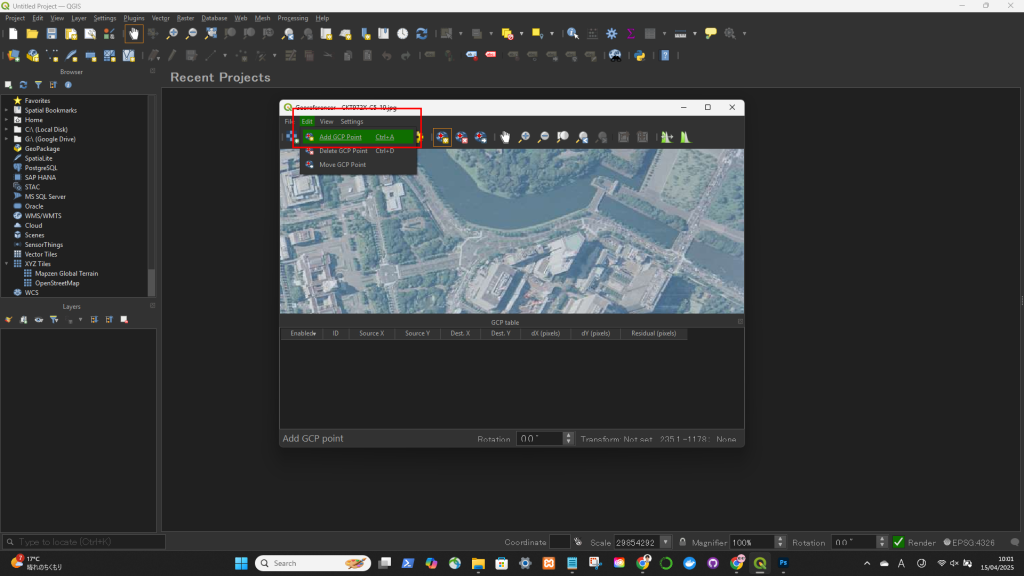
->ジオレファレンスしたいポイントを地図上でクリックして、緯度経度を入力
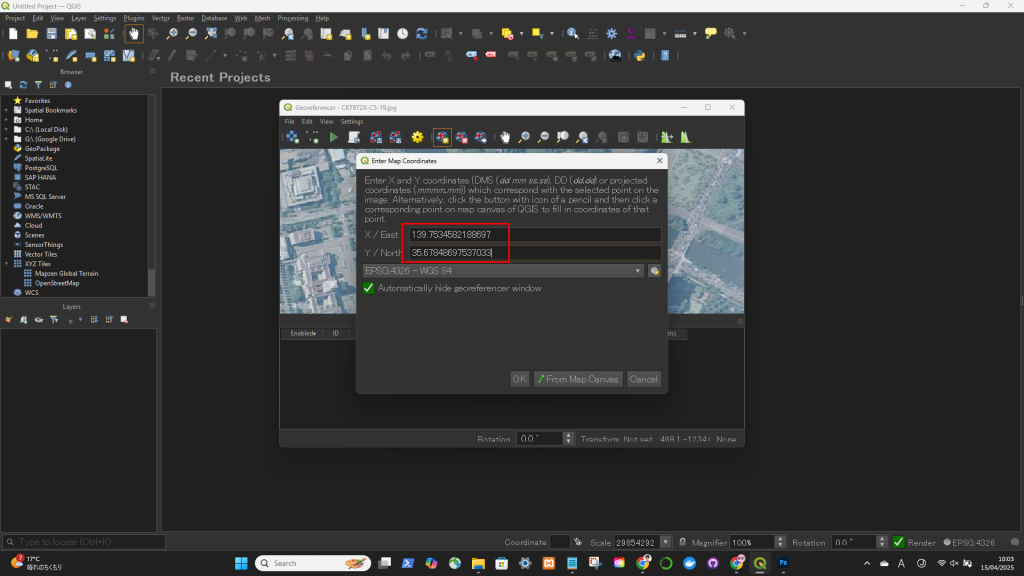
Click on the Transformation Settings icon (gear icon) or go to Settings > Transformation Settings

Click on the Start Georeferencing button (green play icon).
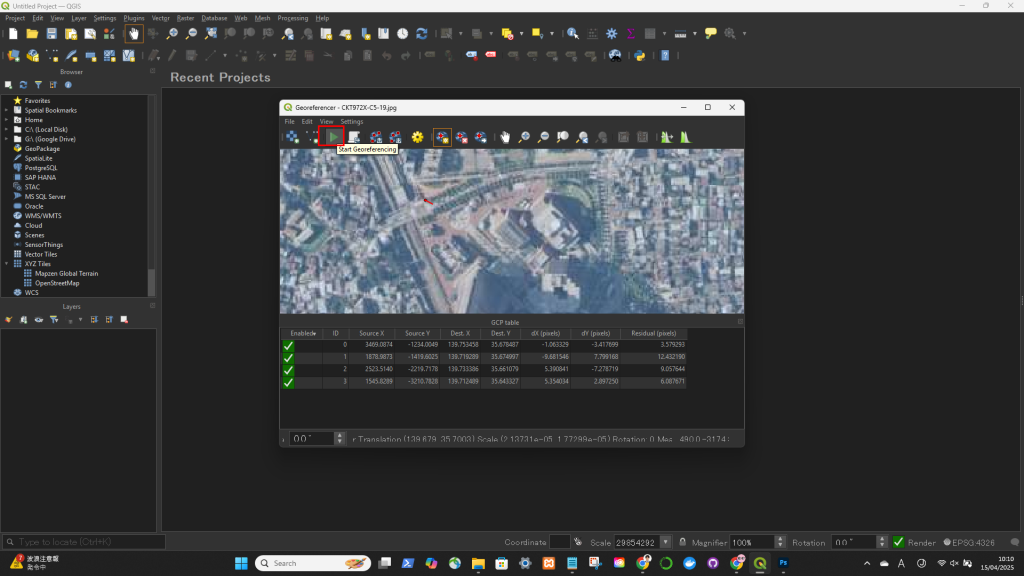
ジオレファレンスできた!
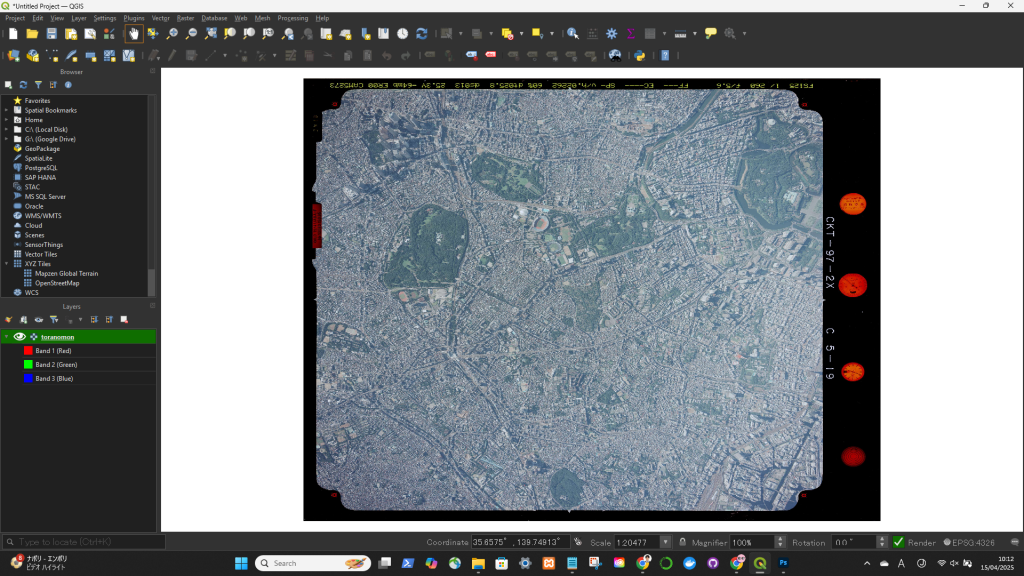
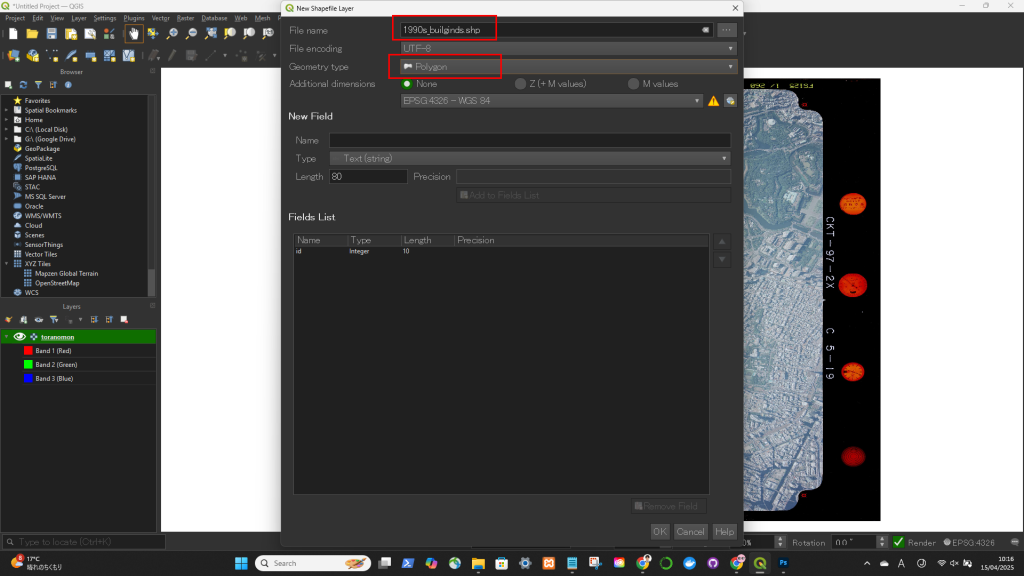
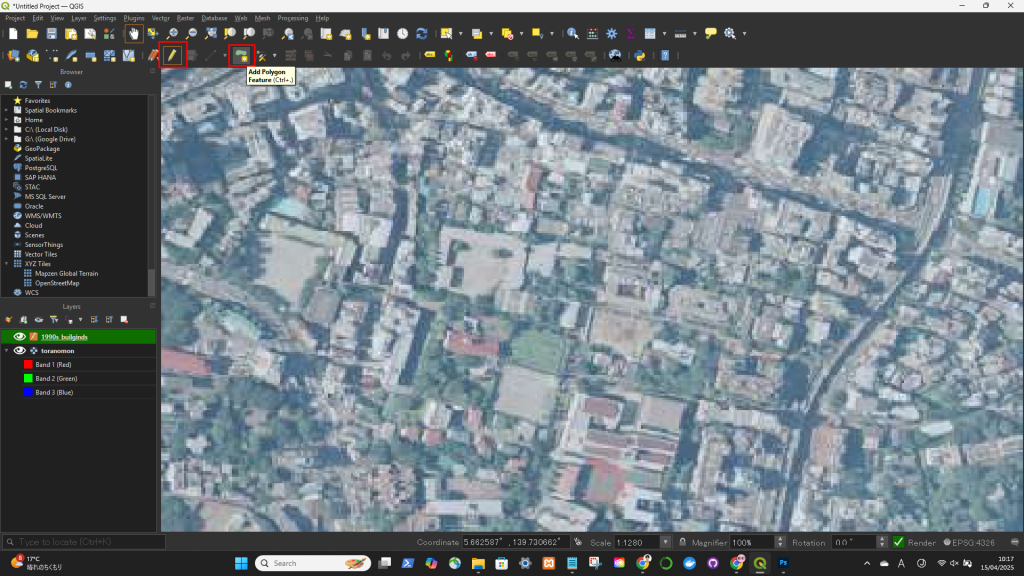
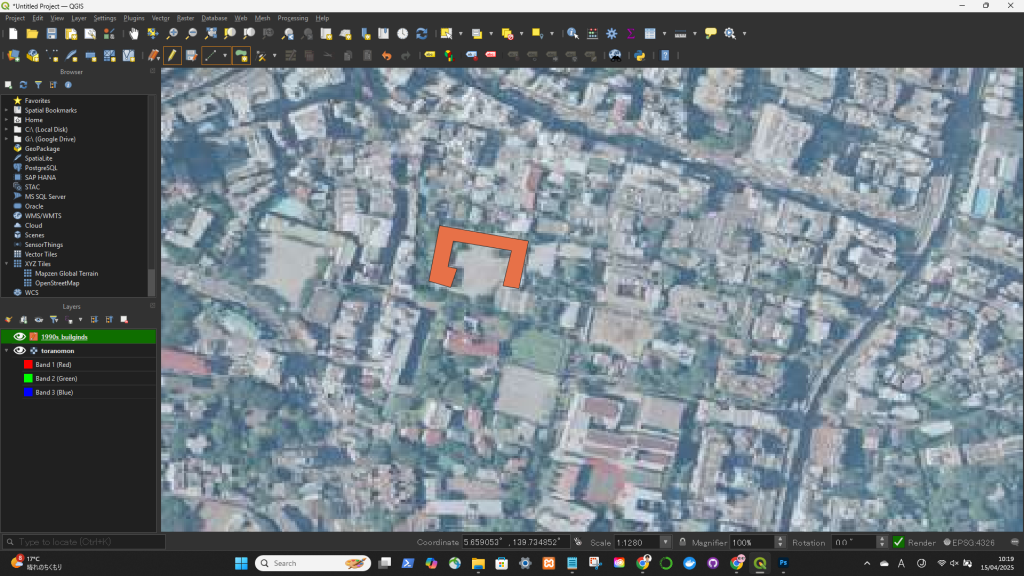
2. ポリゴン描画

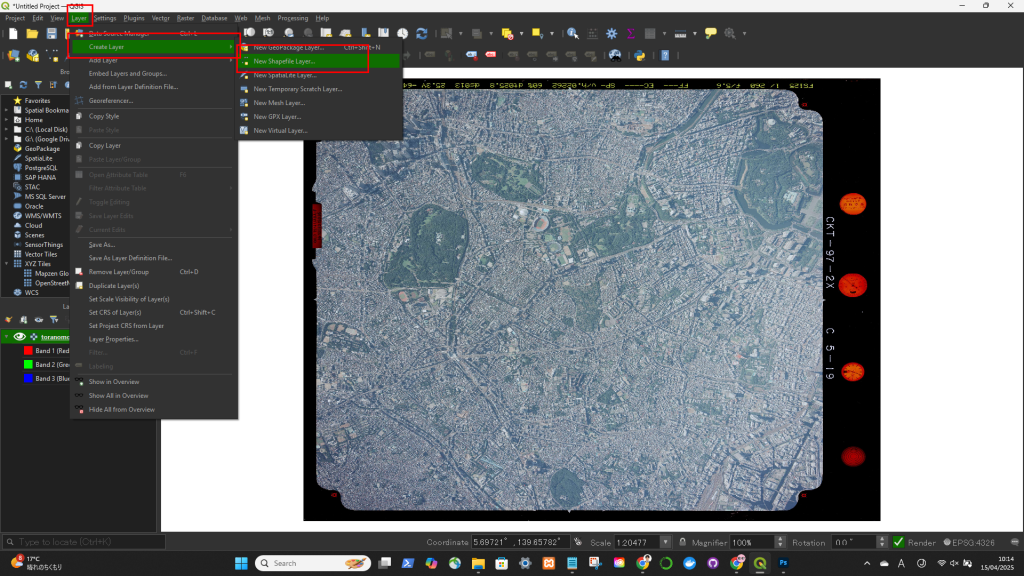
レイヤー → Create Layer → New Shape Layear
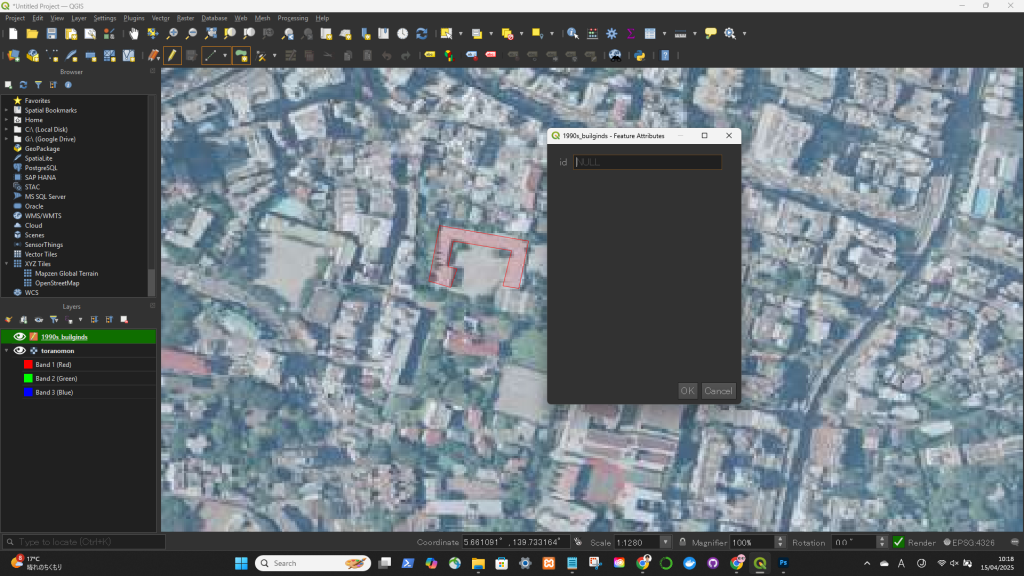
最後の頂点を描いた後、右クリックすると描画終了

スペースキーを押すとマップを移動可能
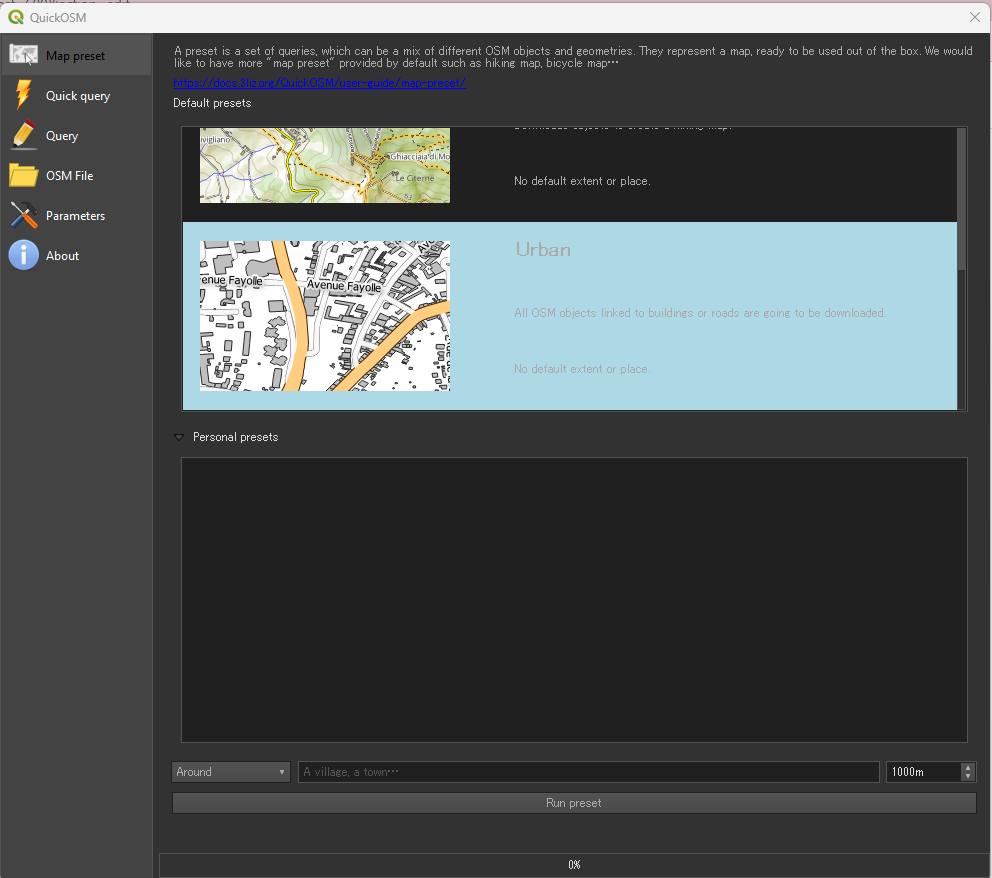
QGISでOSMを開く

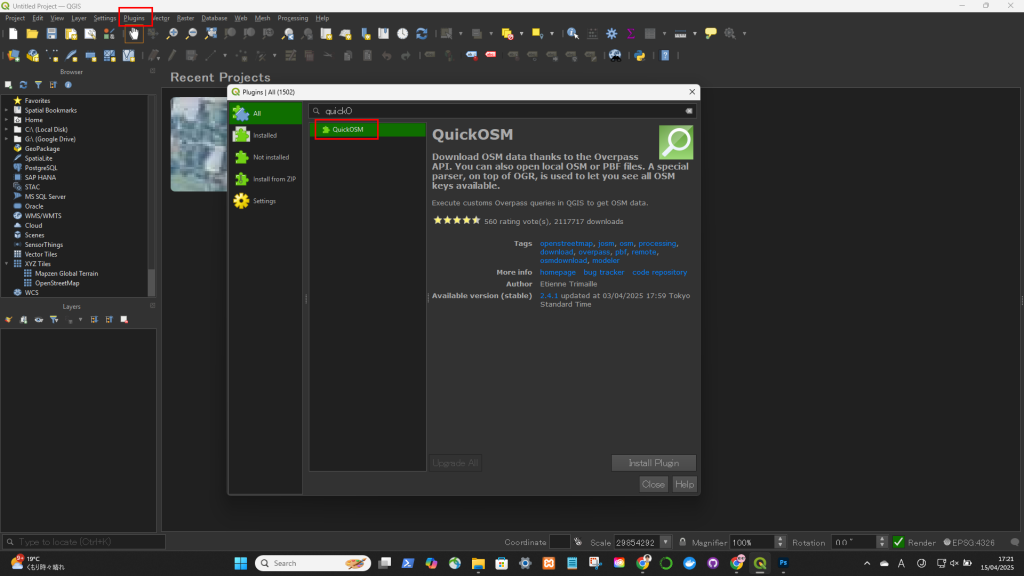
  1. Go to PluginsManage and Install Plugins…
  2. Search for and install: QuickOSM
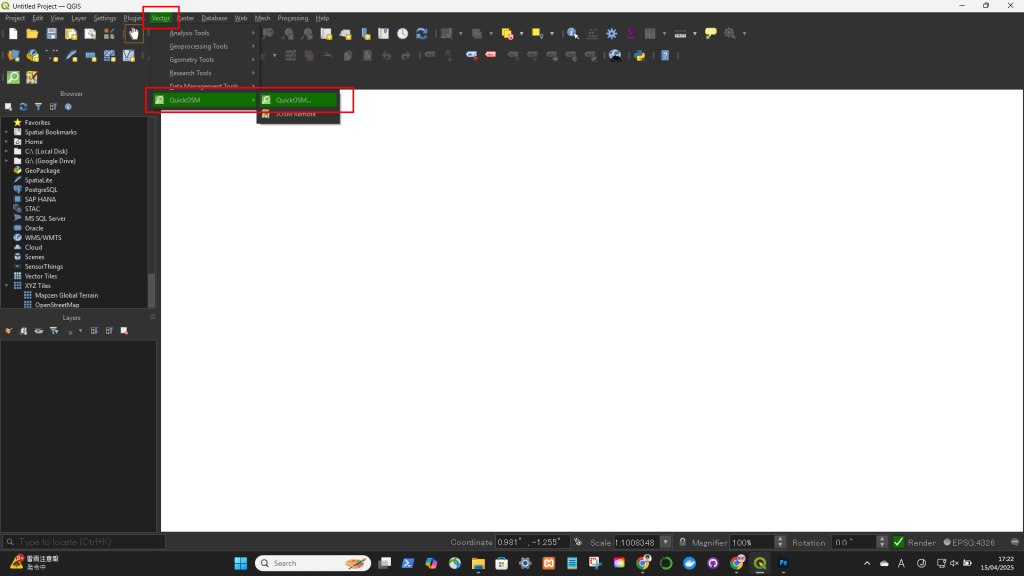
  3. Open it via VectorQuickOSMQuickOSM…
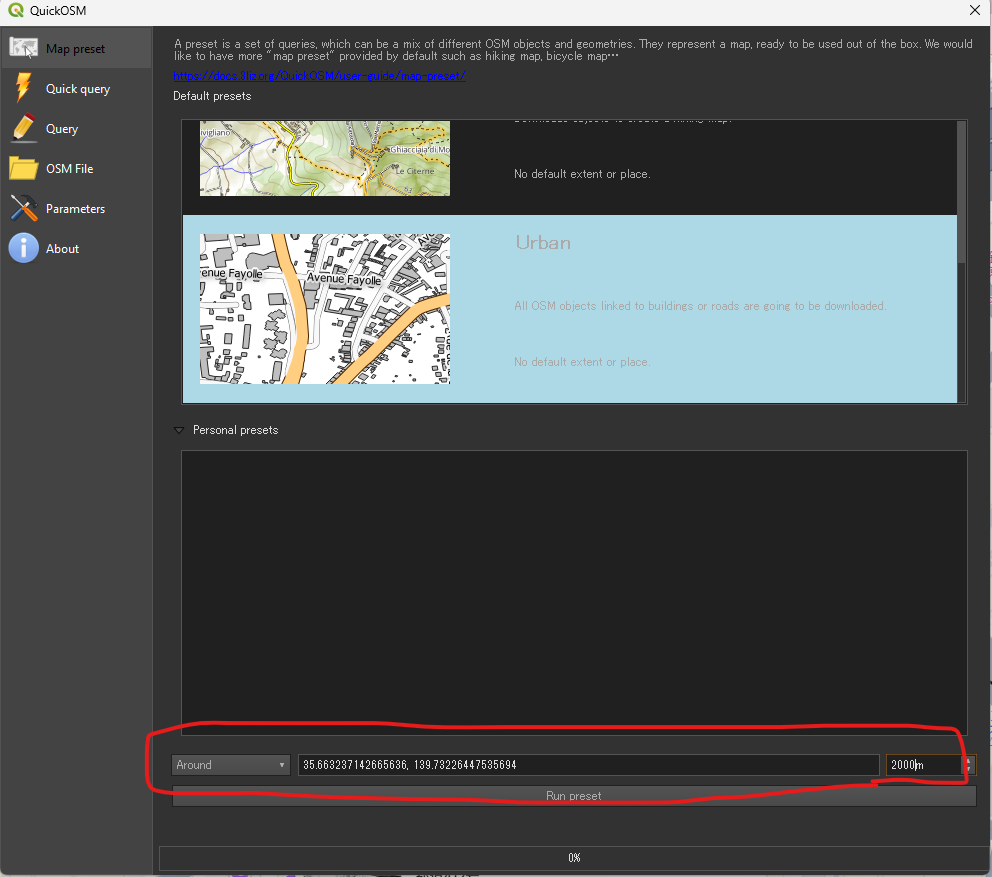
  4. In the window:
    • Key: e.g., building
    • Value: leave blank or set e.g., yes
    • Extent: choose “Canvas extent” or a specific area
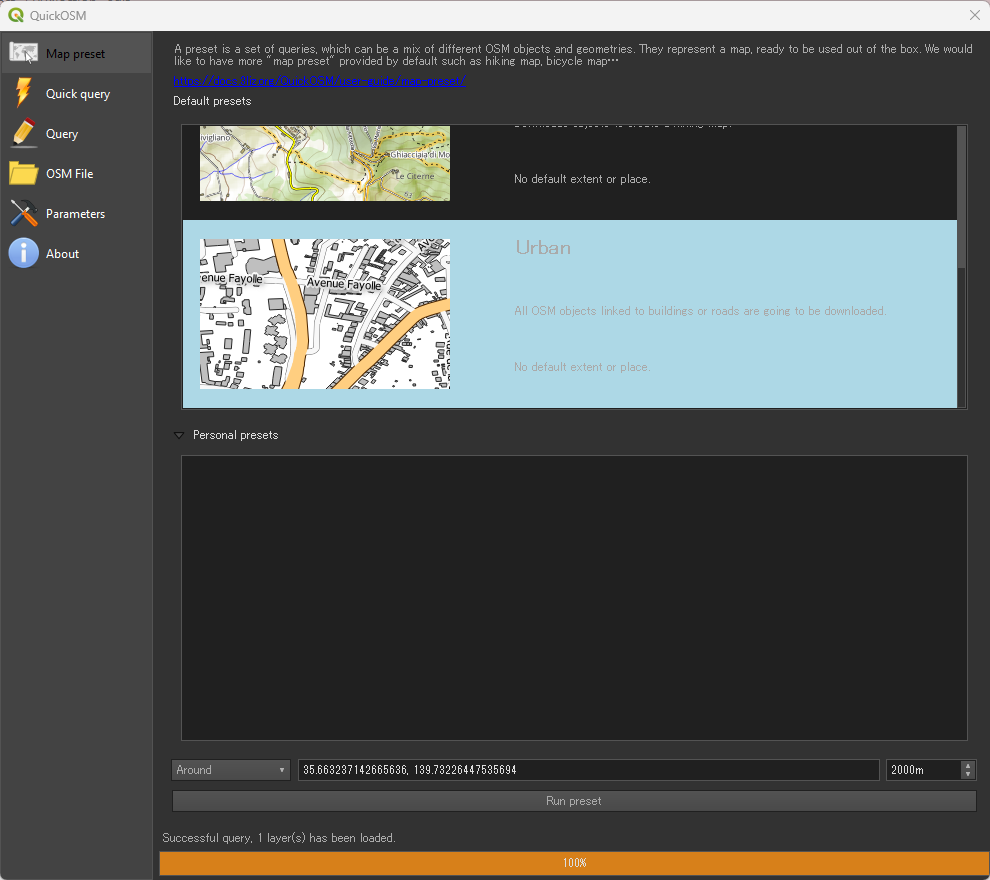
    • Click Run

You’ll get layers like:

  • Points
  • Lines
  • Polygons (for buildings, land use, etc.)
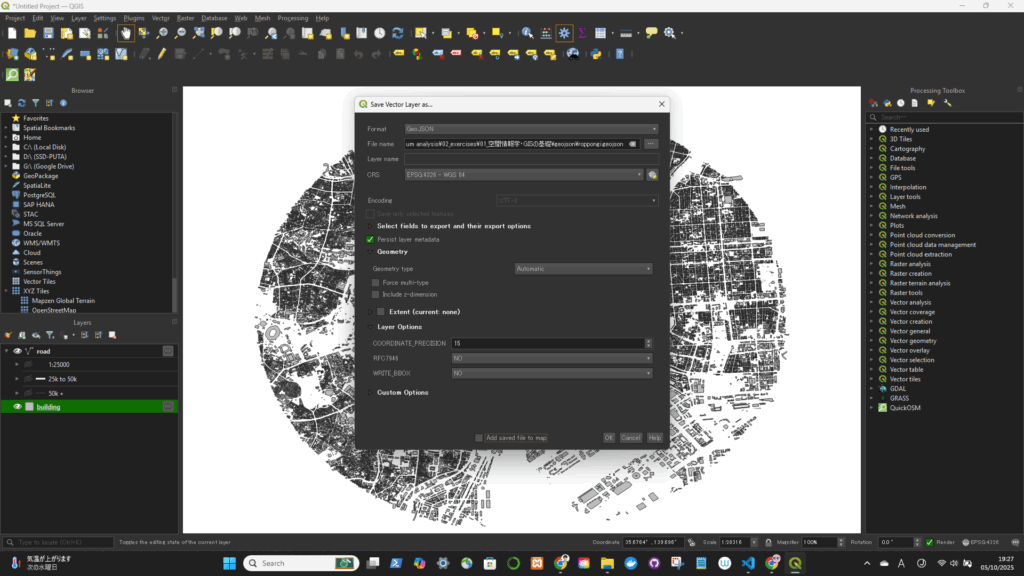
geojsonとして書き出す